How to Make Your First Deposit on Power Ace Using GCash
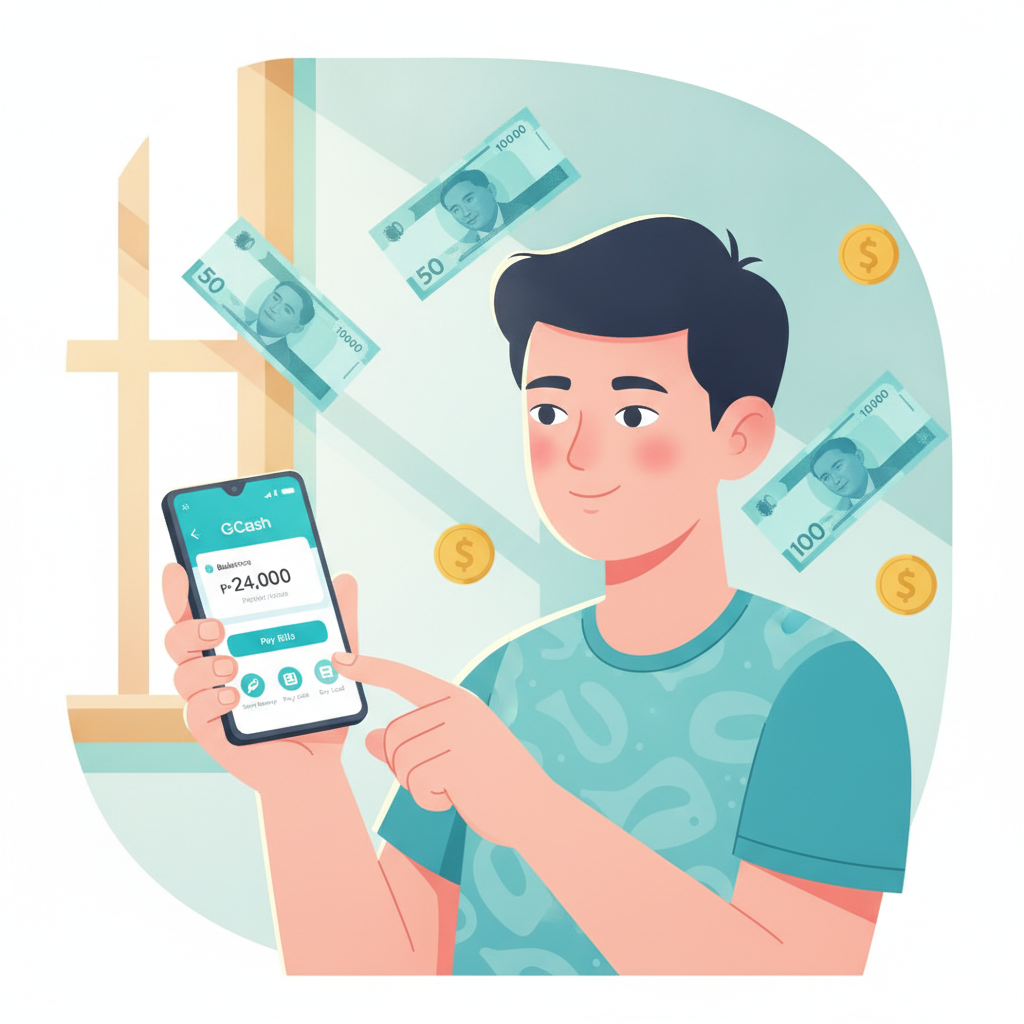
How to Make Your First Deposit on Power Ace Using GCash
Power Ace accepts GCash for deposits, making it straightforward for Filipino players to fund their accounts and start playing slots, live dealer games, or place bets on PBA and NBA matches. This guide walks through the entire deposit process from start to finish, covering the minimum amount, linking your GCash wallet, and confirming that your funds have arrived.
This is an independent guide. Power Ace is a separate operator. Always verify current deposit methods and limits on the platform itself.
Minimum Deposit Amount on Power Ace
Power Ace typically sets a minimum deposit of PHP 100. This low entry point suits players who want to try the platform without committing a large amount upfront.
Before you deposit, check the cashier or deposit page for the current minimum. Operators occasionally adjust limits, and different payment channels may carry different floors. GCash deposits usually share the same PHP 100 minimum, but it's worth confirming each time you fund your account.
If you attempt to deposit below the minimum, the transaction will be rejected or the deposit button will remain inactive. Make sure your GCash wallet holds enough balance to cover both the deposit amount and any service fees GCash itself may charge for the transaction.
Step-by-Step: Linking Your GCash Account and Navigating to the Deposit Page
Log In to Your Power Ace Account
Open your mobile browser or the Power Ace app and complete the Power Ace login using your registered mobile number or email and password. If you have not yet created an account, you will need to complete Power Ace register first—sign up with your personal details, verify your mobile number, and set a secure password.
Once logged in, you will land on the home screen showing featured games, sports events, and promotions.
Open the Cashier or Deposit Section
Look for a button labeled Deposit, Cashier, or a wallet icon, typically located in the top-right corner of the screen or inside the main menu (three horizontal lines). Tap it to open the cashier page.
You will see a list of available deposit methods. Power Ace supports GCash, Maya, bank transfer via InstaPay, and PESONet. Select GCash from the list.
Enter Your Deposit Amount
A form will appear asking you to enter the amount you wish to deposit. Type in a figure of at least PHP 100 or more, depending on how much you want to load into your Power Ace account for playing slots, live tables, or sports betting.
Double-check the amount before proceeding. Some platforms also display any applicable fees at this stage, though GCash deposits on Power Ace are usually processed without additional charges from the casino side. GCash itself may apply standard e-wallet transaction fees depending on your account type and transaction history.
Link or Confirm Your GCash Account
If this is your first deposit using GCash, you may be asked to link your GCash mobile number. Enter the 11-digit number registered to your GCash account (the same number you use to log in to the GCash app).
Power Ace will use this number to send a payment request or redirect you to the GCash payment gateway. Make sure the number is correct. A single digit error will cause the transaction to fail.
If you have already linked your GCash account on a previous deposit, the platform may autofill your registered number. Verify it and proceed.
Review and Submit the Deposit Request
Review all details on the confirmation screen:
- Deposit amount
- Payment method (GCash)
- Linked mobile number
- Any reference number or transaction ID displayed by Power Ace
Tap Confirm, Submit, or Proceed to send the deposit request.
Confirming Your GCash Transaction and Checking Your Power Ace Balance
Authorize the Payment in the GCash App
After you submit the deposit request, Power Ace will redirect you to the GCash payment page or send a payment request to your GCash app.
Open your GCash app. You should see a notification or a pending payment request from Power Ace. Tap on it to review the transaction details.
The request will show:
- Merchant or biller name (may display as "Power Ace" or a payment-processor name)
- Amount in PHP
- Transaction reference number
Verify that the amount matches what you entered on the Power Ace deposit page. If everything looks correct, enter your GCash MPIN (four- or six-digit security code) to authorize the payment.
GCash will deduct the amount from your wallet balance and display a confirmation screen with a transaction receipt. Take a screenshot or note the reference number—this can be useful if you need to contact Power Ace support about the deposit.
Return to Power Ace
Once you confirm the payment in GCash, the app or browser will automatically return you to the Power Ace platform. You may see a "Processing" or "Transaction Successful" message.
Do not close the app or browser during this handoff. Let the redirect complete so Power Ace can receive confirmation from GCash.
Check Your Power Ace Balance
After the redirect, return to the Power Ace home screen or open the cashier/wallet section again. Your new balance should reflect the deposited amount.
If the balance has updated, you are ready to play. Navigate to the slots lobby, live dealer section, or sports betting page and start placing bets. Remember that each game or bet type has its own minimum stake—slots may start at PHP 1 per spin, while live dealer tables and sports bets often require PHP 10 or higher.
How Long Deposits Take to Appear in Your Account
GCash deposits on Power Ace are typically instant or near-instant, meaning your balance updates within seconds to a few minutes after you authorize the payment in the GCash app.
Expected Processing Times
- Instant (most common): The funds appear in your Power Ace account within 10–30 seconds.
- Up to 5 minutes: Occasionally, network delays on the GCash or payment-gateway side can extend processing time to a few minutes.
- Longer than 10 minutes: Rare, but can happen during peak hours, maintenance windows, or if there is a technical issue.
What to Do If Your Deposit Is Delayed
If 10 minutes pass and your balance has not updated:
- Check your GCash transaction history. Open the GCash app, go to your transaction list, and confirm that the payment was deducted and marked as successful.
- Refresh your Power Ace balance. Log out and log in again, or navigate away from the cashier page and return.
- Contact Power Ace support. Use the live chat feature (usually available 24/7) or email support. Provide your transaction reference number from GCash and your Power Ace account username or registered mobile number.
Do not attempt to deposit again until you have confirmed the status of the first transaction. Duplicate deposits can complicate reconciliation and delay resolution.
Keep Your Transaction Records
Save or screenshot your GCash receipt every time you deposit. This serves as proof of payment if you need to follow up with customer support. Most issues are resolved quickly once you provide the reference number and timestamp.
Play Responsibly: 21+ Only
Power Ace is intended for players aged 21 and above. Registration requires valid ID verification, and the platform enforces age restrictions to comply with local regulations.
Online casino gaming and sports betting should always be treated as entertainment, not a way to make money. Set a budget before you deposit, and never wager more than you can afford to lose. If you find that gaming is affecting your finances, relationships, or well-being, take a break and seek help from a responsible-gambling support organization.
Power Ace and similar platforms offer tools such as deposit limits, session reminders, and self-exclusion options. Use them to stay in control of your play.
Summary
Making your first deposit on Power Ace using GCash involves logging in, navigating to the cashier, selecting GCash as your payment method, and entering at least PHP 100. After submitting the deposit request, you authorize the transaction in your GCash app using your MPIN, and the funds appear in your Power Ace balance within seconds to a few minutes.
The low minimum deposit and instant processing make GCash a convenient option for Filipino players on both Android and iOS devices. Once your balance is loaded, you can explore slots, live dealer tables, and sports betting on PBA, NBA, and volleyball.
Always double-check transaction details, keep your GCash receipts, and contact Power Ace support if a deposit is delayed. Play responsibly, set limits, and remember that Power Ace is for players aged 21 and over.